
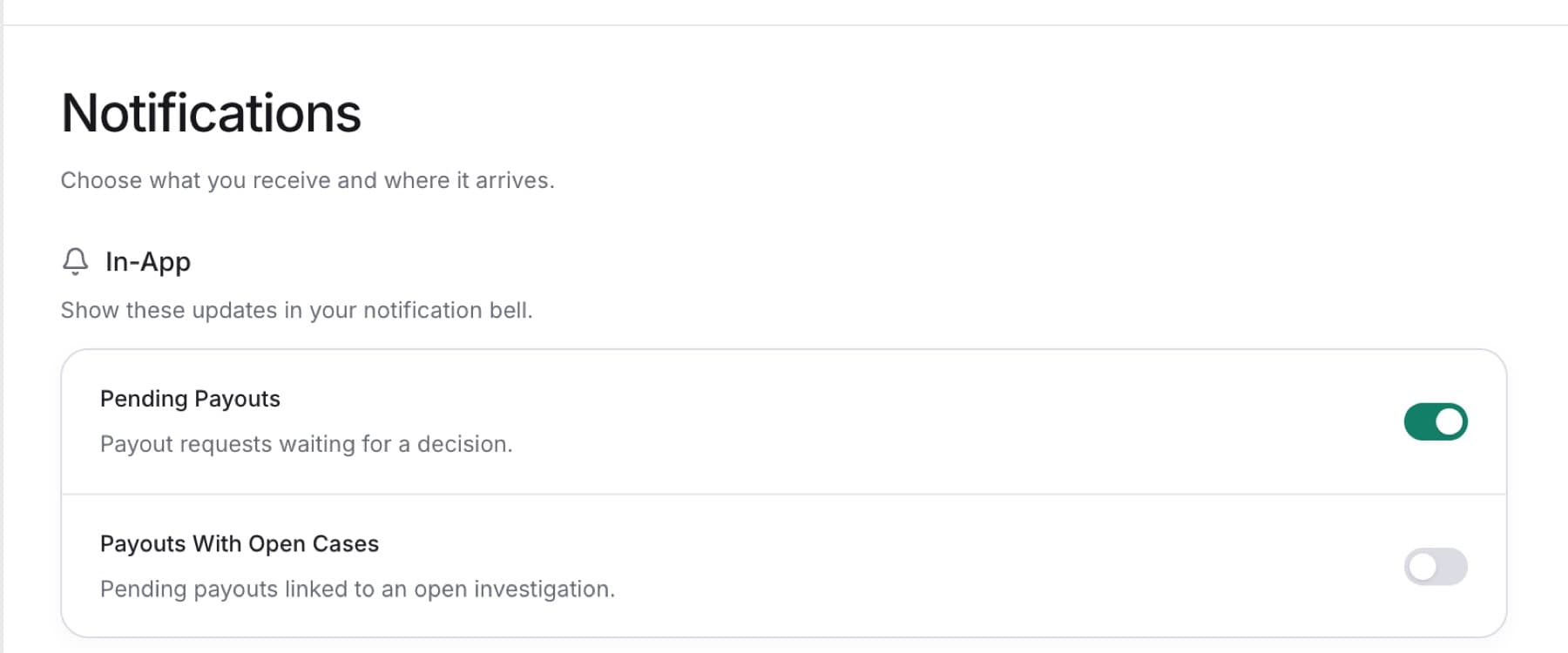
Decide which payout updates reach you, and where. Any role can set in-app and email notifications. You need the Owner or Admin role for Slack.
- Select your name at the bottom of the sidebar.
- Select Settings.
- Under PERSONAL, select Notifications.
- Under In-App, turn Pending Payouts and Payouts With Open Cases on or off. In-app notifications show in the notification bell.
- Under Email, turn the same two notifications on or off. Summaries go to your account email.
Result: You see Notification settings saved.
Tip: You can also open this page from the notification bell. Click the bell, then click Notification settings.
Tip: By default, only Pending Payouts in the app is on.
Tip: If the email switches are off and you cannot turn them on, read the message under Email. For example, Verify your account email before enabling email notifications.
Send alerts to a Slack channel
You need the Owner or Admin role, and Slack connected to the workspace.
- On Notifications, go to Slack.
- Turn on Payouts With Open Cases.
- Next to Receive in, select a channel.
Result: You see Slack notification settings saved. The Slack alert is shared by the whole workspace.
Tip: If Slack is not connected yet, select Connect Slack.