
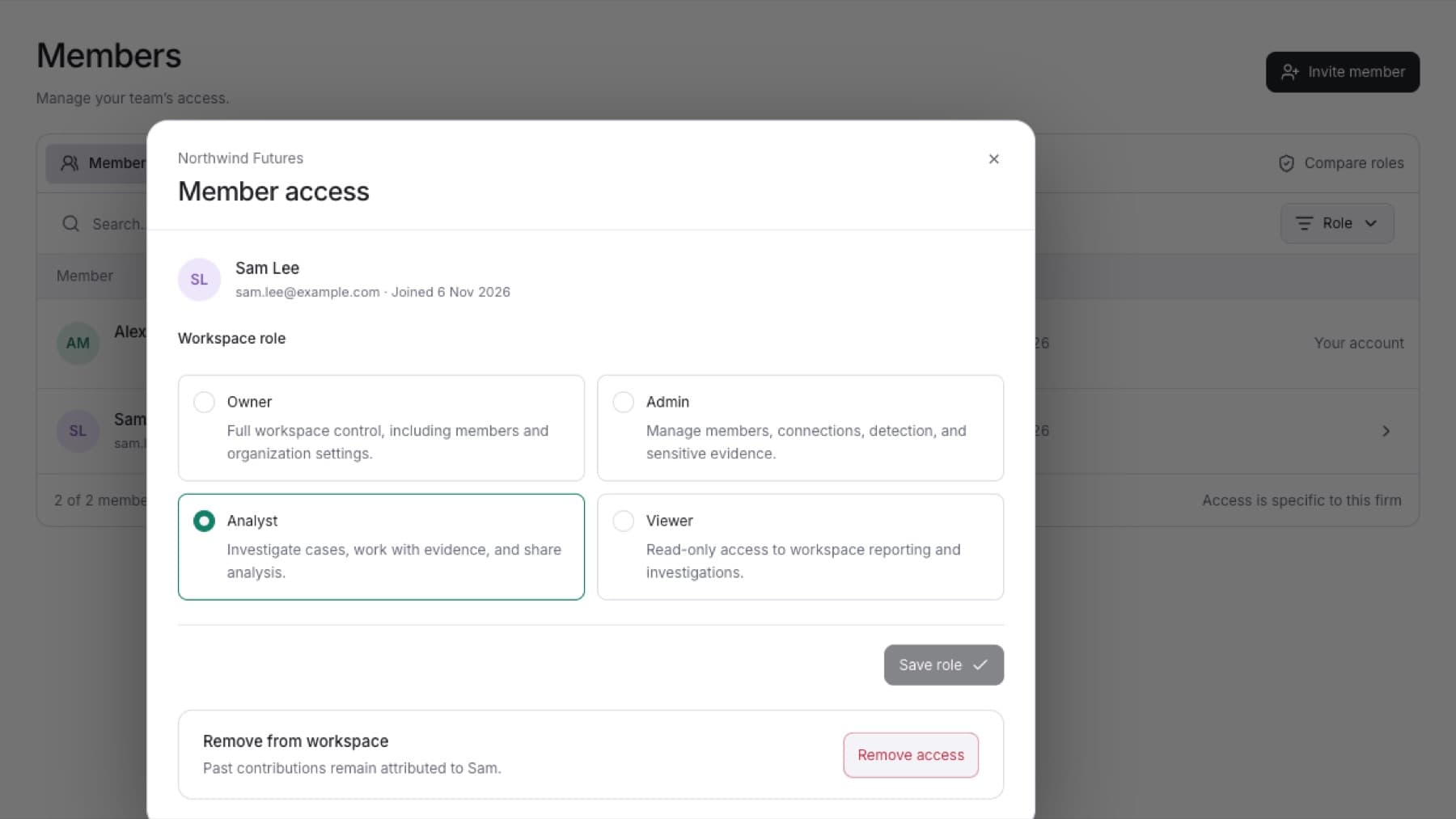
Change what a teammate can see and do. You need the Owner or Admin role.
- Select Settings, then select Members.
- On the Members tab, find the person. Use the search box if the list is long.
- Select the manage button at the end of their row (Manage followed by their name). The Member access dialog opens.
- Under Workspace role, select the new role.
- Select Save role.
Result: The person's role badge in the list shows the new role.
If the dialog shows a message instead of the roles, the change is not allowed:
- Another owner must change your own access. You cannot change your own role.
- Keep at least one owner in the workspace. This person is the last Owner. Make someone else an Owner first.
Note: Only an Owner can make someone an Owner, or change the role of an Owner. If an Admin tries, you see That role change was refused.